
Microsoft Edge Scareware Blocker: How Your Browser Now Fights Scams for You
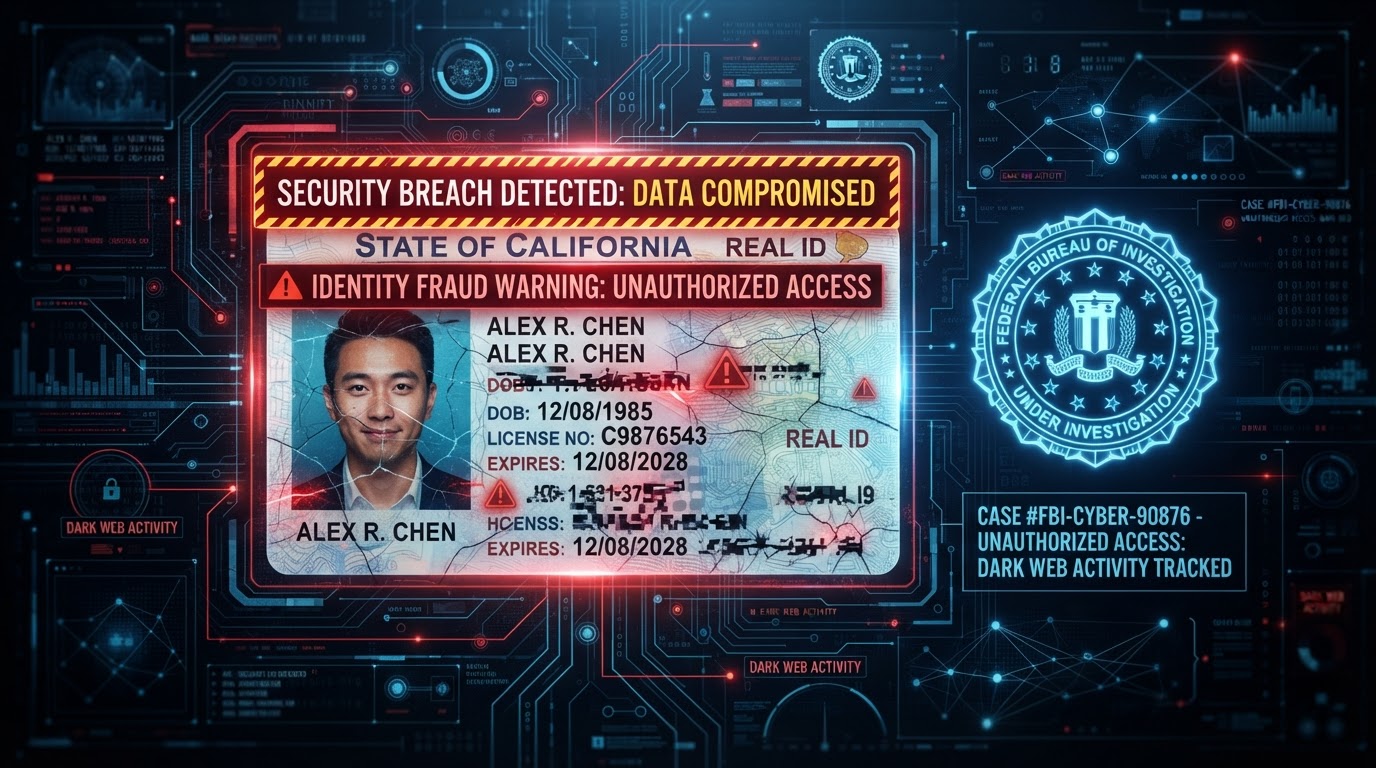
Have you ever seen a scary pop-up on your computer that says you have a virus? What if your browser could stop that scam before you even fell for it?
Good news — it can now. Microsoft Edge has a new tool called the Edge Scareware Blocker, and it's already protecting most Windows and Mac computers by default. It uses on-device artificial intelligence to spot fake virus warnings and block them instantly, without waiting for anyone else to report the scam first.
For businesses in Port St. Lucie and across the Treasure Coast, this matters more than it might seem. Scareware scams trick employees into calling fake tech support numbers or paying for "fixes" they don't need, and these scams cost companies real money every year. Now, however, Edge can catch many of these scams automatically — even ones nobody has reported yet.
In this post, we'll explain what the Edge Scareware Blocker does, how Microsoft Safe Links protects your email, and how EZETech sets up both for your business.
What Is Scareware?
Scareware is a type of online scam, and it usually shows up as a full-screen pop-up on your computer. The pop-up might say things like:
- "Your computer is infected with a virus!"
- "Call this number immediately to fix it!"
- "Do not close this window or your files will be deleted!"
These messages are fake. They're designed to scare you into doing something — calling a fake phone number, paying money, or handing over a password. That's why it's called "scareware."
What Does the Edge Scareware Blocker Actually Do?
The Edge Scareware Blocker is a security feature built directly into the Microsoft Edge browser. Here's how it works, in plain terms:
- You visit a website.
- The site tries to take over your whole screen with a fake warning.
- Edge's on-device AI recognizes the scam pattern.
- Edge immediately exits full-screen mode and mutes any alarming sound.
- You see a clear warning explaining the page might be a scam.
- You choose to close the page or continue anyway.
This all happens in less than a second. Because the AI model runs locally on your computer instead of checking an online list first, it can catch brand-new scams nobody else has seen yet — according to Microsoft's own data, sometimes hours or even days before those scams show up on global blocklists.
What Is the Edge 142 Scareware Sensor?
Starting with Edge version 142, Microsoft added an additional layer: the scareware sensor. When the Edge Scareware Blocker catches a scam on a device, the sensor can report it to Microsoft right away. Microsoft then checks the site and, if it's confirmed dangerous, blocks it for everyone else around the world.
⚡ Important: The sensor does not share screenshots or personal information — only a quick alert so Microsoft can protect other users faster. Microsoft has confirmed this directly in its own Edge engineering blog.
The sensor is currently off by default, though Microsoft plans to turn it on for users who already have SmartScreen enabled. Even without the sensor, the main Scareware Blocker still works exactly as described above.
What Is Microsoft Safe Links?
The Edge Scareware Blocker protects you while you browse the web — but what about links in your email? That's where Microsoft Safe Links comes in.
Safe Links is part of Microsoft Defender for Office 365, and it protects links inside:
- Emails in Outlook
- Microsoft Teams messages
- Office documents (Word, Excel, PowerPoint)
Here's how it works:
- You receive an email with a link.
- You click the link.
- Before the destination opens, Microsoft scans it to confirm it's safe.
- If the site is dangerous, you see a warning page instead.
- If the site is safe, it opens normally.
Why does this matter? Because some attackers send links that look harmless at first, then change them to point somewhere dangerous hours later. Safe Links checks the destination every time you click — not just when the email first arrives — so even a link that turned malicious after delivery still gets caught.
Why Your Business Needs Both Layers of Protection
Scams reach your team through two main channels: your browser, when employees are searching the web or clicking ads, and your email, when someone sends a phishing link. If you only protect one channel, the other stays wide open. That's why businesses need both the Edge Scareware Blocker for browsing and Safe Links for email — together, they cover the two most common ways scammers try to trick employees.
Here's a simple, realistic example. A person on your team gets an email that looks like it's from a vendor, with a link to a "fake invoice." Safe Links scans the link the moment they click it and blocks it, because the destination was dangerous. Later that same day, the same person is searching for a supplier online, and a website tries to take over their screen with a fake virus warning. The Edge Scareware Blocker shuts it down instantly and shows a warning.
Two scams, two different channels — and both stopped automatically, without anyone on your team needing to recognize the threat in the moment.
How EZETech Sets This Up for Your Business
At EZETech, we don't just tell you these tools exist — we configure, manage, and monitor them for you, end to end. Specifically, we:
- Turn on the Edge Scareware Blocker across all company computers using enterprise policy settings.
- Enable the Edge 142 sensor so newly discovered scams get reported and blocked faster.
- Set up Safe Links inside your Microsoft 365 email security configuration, so every link is scanned at the moment it's clicked.
- Create an allow-list for your company's own websites and apps, so legitimate tools don't get flagged by mistake.
- Monitor alerts through security dashboards, so we know immediately if something suspicious happens.
- Train your team so employees recognize these warnings and know exactly what to do when they see one.
Technology works best when people understand it, which is why we pair these tools with simple, ongoing training as part of our managed IT services.
What Should You Do If You See a Scam Pop-Up?
If a scary pop-up appears on a work computer, follow these steps:
- Do not call any phone number shown on the screen.
- Do not click anything inside the pop-up.
- Press Escape or close the browser tab.
- If Edge shows you a warning, trust it and close the page.
- Tell your IT team or contact EZETech right away.
⚡ Remember: A real security warning from Microsoft will never ask you to call a phone number or pay money.
About EZETech
EZETech is a Managed IT Services Provider based in Port Saint Lucie, Florida, helping mid-size businesses across the Treasure Coast stay secure, productive, and connected. Our services include cybersecurity, cloud security, endpoint protection, data backup, and compliance support.
Our motto is "We Do IT Right" — which means setting up the right protections, training your team, and watching over your systems, so you can focus on running your business instead of worrying about scams.
"Security is not one tool — it's a strategy. We layer browser protection, email scanning, endpoint detection, and training so our clients are defended everywhere. — Zack Ibanez, President, EZETech"
Protect Your Business Today
Scams are getting smarter every day, but with the right tools and the right IT partner, your business can stay a step ahead. EZETech can set up the Edge Scareware Blocker, Microsoft Safe Links, and a full layered security plan for your organization, so your team stays protected without slowing down.
Call us at (772) 237-7732 for a free quote, or schedule your free IT assessment online and we'll show you exactly where your current setup leaves gaps.
Frequently Asked Questions
- What is the Microsoft Edge Scareware Blocker?
It's a built-in Edge browser feature that uses on-device AI to spot fake virus pop-ups and scam pages. When it finds one, it exits full-screen, mutes the sound, and shows a warning so you don't get tricked. - How does the Edge 142 scareware sensor work?
When the Edge Scareware Blocker catches a scam, the sensor can quickly notify Microsoft, which then blocks that scam for everyone else — without sharing personal information or screenshots. - What is Microsoft Safe Links?
Safe Links is an email security feature inside Microsoft Defender for Office 365. It checks every link you click in Outlook, Teams, and Office documents, blocking the destination if it's dangerous. - Is the Edge Scareware Blocker already turned on?
Yes, for most people using Edge on Windows or Mac, it's on by default. The Edge 142 sensor, however, is currently off by default, with Microsoft planning to enable it more broadly soon. - Can my IT team control these settings?
Yes. IT administrators can turn the Scareware Blocker and sensor on or off company-wide, and add internal sites to an allow-list so they aren't flagged by mistake. - How does EZETech help with this?
EZETech configures, manages, and monitors the Edge Scareware Blocker, the Edge 142 sensor, and Safe Links for your business, while also training your employees and watching for threats through security dashboards.